Spotlight What Sells
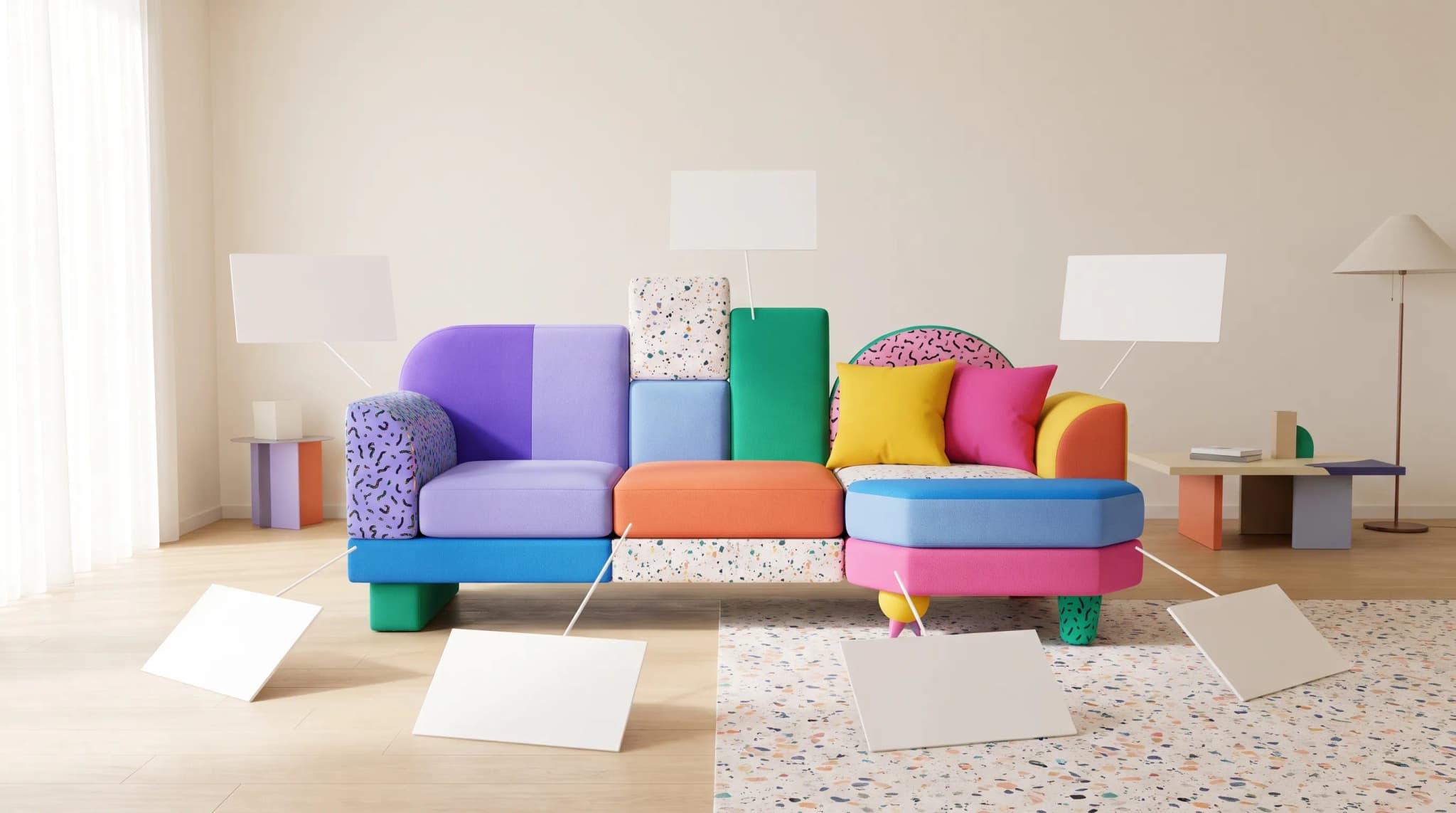
Your sofa has 6 standout features. One photo can't show them all. Product Highlights generates a shot for each from a single image.
AI Studio tool guides:
- Remove Background — One-click cutouts
- Upscale Image — Make any image print-ready
- Product Staging — Stage in any room style
- Edit Specific Area — Pixel-perfect edits
- Edit with Brush — Add or erase anything
- Chat to Edit — Edit by talking
- Perspective Change — New angles, no reshooting
- Line Drawing — Photo to technical drawing
- Carousel — Every angle from one photo
- Product Highlights — Spotlight what sells
Your recliner has adjustable arms, an expandable headrest, lumbar support, and hidden storage. One photo can't emphasize all of them. A photographer would need a separate shot for each feature.
Product Highlights does this automatically. Upload one image. List the features. Get a dedicated shot for each one.
What It Does
Product Highlights takes your hero image and generates new compositions—each one reframed to emphasize a specific feature you describe. The AI recomposes the shot to draw attention to the feature while keeping the product recognizable.
This isn't cropping. The AI understands what "adjustable arms" means and creates a shot that showcases them.
Use the anatomy of a complete furniture product listing to decide which features need a dedicated image and which need supporting text.
How to Use It
Step 1: Upload
Drag in your product images. Up to 50 for batch processing.
Step 2: List Your Highlights
Add up to 9 features per batch. One per field:
- "Adjustable arms"
- "Expandable headrest"
- "Hidden storage compartment"
- "Lumbar support cushion"
- "Premium leather stitching"
Be specific. "Adjustable arms" works better than "nice design."
Step 3: Configure
Aspect Ratio: Square (1:1), Landscape (4:3), or Portrait (3:4).
Style Reference: Upload a reference image to guide the lighting and environment. Without one, the AI keeps the background consistent with the original.
Quality Mode: Fast for exploration. Quality for final deliverables.
Step 4: Generate
Each image-highlight combination processes in parallel. Track progress in real time.
Step 5: Review
Results appear grouped by hero image. Browse highlights in a scrollable carousel. Each shot focuses on a different feature.
Use the furniture ecommerce readiness checklist to check that feature images agree with the specification and selected variant before publishing.
Tips for Best Results
Write Clear Highlights
Vague highlights produce vague results:
- "Nice feature" gives the AI nothing
- "Expandable headrest with 3-position adjustment" gives it everything
When highlights sit inside room scenes, the catalog-scale lifestyle imagery workflow helps keep the brief and visual style consistent across the range.
Start with 3-4 Highlights
Test with your top features before adding all 9. See how the AI interprets them. Refine the wording if needed.
Use Style Reference for Campaigns
Upload a reference image to match the aesthetic across all highlight shots. Keeps your feature gallery visually cohesive.
Pair with Carousel
Use Carousel for angle coverage. Use Product Highlights for feature emphasis. Together they give you a complete product image set from one photo.
Practical Applications
E-commerce Feature Galleries
Product pages with feature callouts convert better. Generate a dedicated image for each selling point. Pair with text overlays in your page builder.
The workflow for AI-generated imagery on furniture product listings explains how to connect those feature shots to the rest of the listing set.
Sales Presentations
Walking a buyer through features? Show them a visual for each one. "Here's the lumbar support." "Here's the hidden storage." One image per talking point.
Marketing Campaigns
Launching a new product? Create a social post for each feature. One photo generates a week of content.
Spec Sheets
Pair highlight images with dimension data from Line Drawing. Each feature gets its own visual on the spec sheet.
Comparison Content
Show the same product with different features highlighted. "Why choose the Premium over the Standard?" Each difference gets its own image.
Cost and Credits
10 credits per highlight per image. Cost shows before you generate. 5 highlights on one image costs 50 credits.
Frequently asked questions
What does Product Highlights need from me?
One hero image per product (up to 50 for batch processing) and a list of the features you want shown, up to nine per batch, one per field. Be specific: "Adjustable arms" works better than "nice design." You get a dedicated shot for each feature, with results grouped by hero image in a scrollable carousel.
Is Product Highlights just cropping the photo?
No. The AI understands what a feature like "adjustable arms" means and recomposes the shot to draw attention to it while keeping the product recognizable. Each output is a new composition reframed around one feature, not a zoomed-in crop of the original.
How is Product Highlights different from Carousel?
Carousel gives you angle coverage; Product Highlights gives you feature emphasis. Together they produce a complete product image set from one photo. For spec sheets, you can also pair highlight images with dimension data from Line Drawing so each feature gets its own visual.
How much does it cost, and how should I start?
Product Highlights costs 10 credits per highlight per image, so five highlights on one image is 50 credits, and the cost shows before you generate. Start with three or four top features, see how the AI interprets them and refine the wording before adding all nine. Fast mode is for exploration; Quality is for final deliverables.
Show off every feature. Open Product Highlights and give each selling point its own spotlight.