Pixel-Perfect Product Edits
Paint over the area you want changed, describe what you want. AI swaps materials, removes distractions, and fixes details.
AI Studio tool guides:
- Remove Background — One-click cutouts
- Upscale Image — Make any image print-ready
- Product Staging — Stage in any room style
- Edit Specific Area — Pixel-perfect edits
- Edit with Brush — Add or erase anything
- Chat to Edit — Edit by talking
- Perspective Change — New angles, no reshooting
- Line Drawing — Photo to technical drawing
- Carousel — Every angle from one photo
- Product Highlights — Spotlight what sells
There's a reflection on the glass. A brass pull that should be nickel. A wrinkled cushion that looked fine on set. You know exactly what needs fixing. You just need a way to fix only that spot.
Edit Specific Area does one thing well: it changes exactly what you paint over and leaves everything else untouched. Paint a mask. Describe what you want. The AI swaps it in, matching the lighting and grain around it.
When to Use It
Targeted Retouching
- Remove a power cord behind a floor lamp
- Kill a distracting reflection
- Erase a price tag from the final image
Material Changes
Change one area without affecting the rest:
- Swap just the seat cushion, not the frame
- Change only the table leg finish
- Replace a single throw pillow
Object Modification
- Switch hardware from brass to nickel
- Modify decorative elements
- Adjust color on specific details
Background Fixes
Fix the background without touching the product:
- Remove objects behind furniture
- Clean up wall imperfections
- Fill gaps where props were removed
For adding props or removing distractions, Edit with Brush offers dedicated add and remove modes.
How to Use It
Step 1: Upload Your Image
Select your photo. The interface displays it at full resolution.
Step 2: Paint Your Mask
Brush: Paint over what you want to change. Eraser: Clean up edges. Size slider: 4px for fine detail, 256px for broad strokes. Clear: Start over. Overlay toggle: Check your mask against the original.
Step 3: Describe Your Edit
Be specific:
- "Brushed nickel drawer pulls with modern minimal design"
- "Light gray linen upholstery with subtle texture"
- "Clean white wall with soft shadow"
Don't be vague. "Make it look better" gives the AI nothing to work with.
Step 4: Add Reference Images (Optional)
Upload a fabric swatch, style reference, or product photo. The AI uses these to guide the edit. Words are ambiguous. Images are precise.
Step 5: Configure and Generate
Pick your output size and number of variations. Enable Assist Mode to let the AI sharpen your prompt. Generate and pick the best result.
For the wider approval and publishing process, see AI-generated imagery on furniture product listings.
Advanced Options
Under "Advanced": Seed for reproducible results, Guidance for prompt strictness, Steps for detail level, Inpaint Strength for how dramatically the area changes.
Tips for Best Results
Mask Carefully
The mask is the foundation. Too small and the AI lacks context. Too large and you change things you didn't intend. Follow edges.
Describe Context, Not Just Content
Instead of "Blue fabric," try "Navy blue velvet upholstery matching the adjacent cushion, with similar lighting and shadow patterns." Context produces coherent results.
Use Reference Images
Upload the actual fabric swatch. Provide the exact hardware finish. Text is interpreted. Images are matched.
Generate Multiple Variations
Request 3-5 outputs. AI interpretation varies. Having options speeds your workflow.
Compare each result against the source using how to spot and fix the uncanny valley in furniture images before choosing an edit to publish.
Iterate
Use your best output as the new input. Each pass addresses specific remaining issues.
If a conversation is easier than another mask, use Chat to Edit to describe the next change.
Practical Applications
Hardware Update
Dresser has brass pulls. You want nickel. Mask each pull. Prompt: "Brushed nickel hardware with satin finish." Done.
Background Cleanup
Electrical outlet behind your floor lamp. Mask it. Prompt: "Clean white painted wall." The outlet disappears and the wall fills in with a matching finish.
Detail Modification
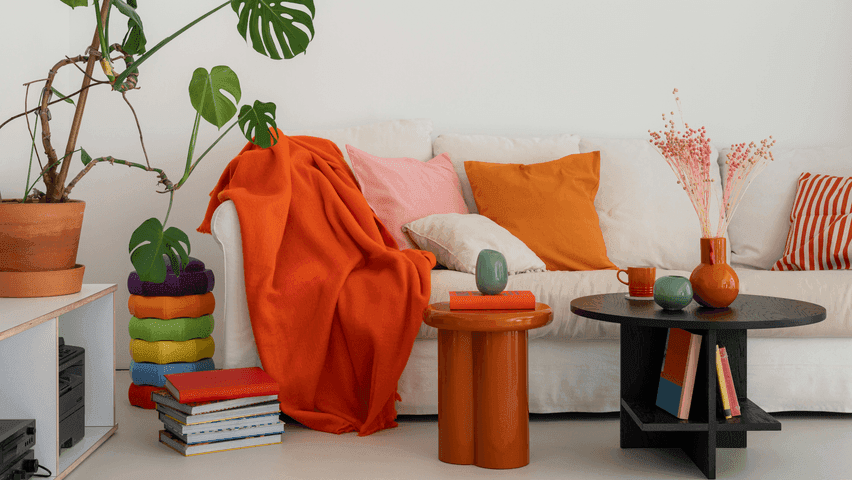
Wrinkled cushion in the shot. Mask the wrinkle. Prompt: "Smooth linen surface with clean seams." The AI fixes it while keeping the material authentic.
Material Sample Visualization
Client sent a fabric swatch for their COM order. Upload the swatch as a reference. Mask your chair's upholstery. Generate a preview in their exact material.
Cost and Credits
Credits scale with output size and variations. Cost shows before you generate. Compare that to reshooting or hours of manual retouching.
Frequently asked questions
What is Edit Specific Area good for?
Fixing one spot without touching anything else. Paint a mask over the area, describe what you want, and the AI swaps it in while matching the surrounding lighting and grain. Typical jobs include removing a reflection, cord or price tag, switching hardware from brass to nickel, swapping just a seat cushion, or cleaning up a wall behind the product.
How do I paint a good mask?
Use the brush to paint over what should change and the eraser to clean up edges. The size slider runs from 4px for fine detail to 256px for broad strokes, Clear starts over, and the Overlay toggle checks your mask against the original. Too small a mask leaves the AI without context; too large changes things you didn't intend. Follow the edges.
What should I write in the prompt?
Describe context, not just content. Instead of "Blue fabric," try "Navy blue velvet upholstery matching the adjacent cushion, with similar lighting and shadow patterns." Vague prompts like "Make it look better" give the AI nothing. If you have the actual fabric swatch or hardware finish, upload it as a reference image: text is interpreted, images are matched.
What if the result isn't right?
Generate three to five variations, since AI interpretation varies, and pick the best. Then use that output as the new input and run another pass on whatever still needs work. Under Advanced you can set Seed for reproducible results, Guidance for prompt strictness, Steps for detail level and Inpaint Strength for how dramatically the area changes.
Try it. Open Edit Specific Area and fix exactly what needs fixing.