Edit Images by Talking
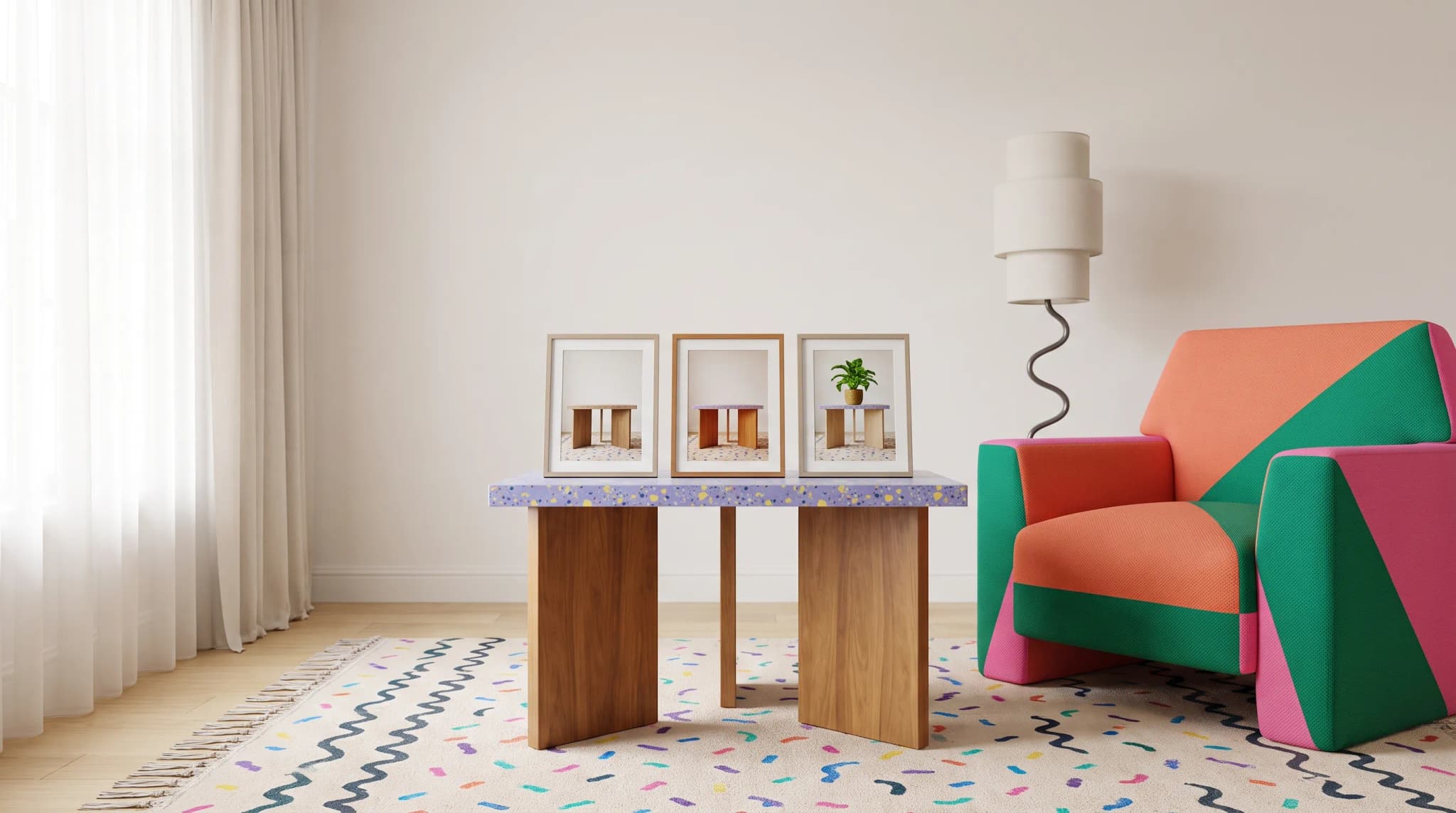
"Make the wood warmer." "Remove that reflection." "Add a plant in the corner." Type what you want. The AI does the editing.
AI Studio tool guides:
- Remove Background — One-click cutouts
- Upscale Image — Make any image print-ready
- Product Staging — Stage in any room style
- Edit Specific Area — Pixel-perfect edits
- Edit with Brush — Add or erase anything
- Chat to Edit — Edit by talking
- Perspective Change — New angles, no reshooting
- Line Drawing — Photo to technical drawing
- Carousel — Every angle from one photo
- Product Highlights — Spotlight what sells
"Make the wood warmer." "Remove that reflection on the left." "Add a plant in the corner."
That's it. You type what you want. The AI edits the image.
No tools to learn. No modes to select. No parameters to configure. Chat to Edit remembers your conversation, understands follow-ups, and refines results based on feedback.
When to Use It
Quick Iterations
"Try a different fabric color." "Now remove that shadow." "Actually, make it brighter." Each request builds on the last. No tool-switching.
Complex Requests
"Stage this sofa in a Scandinavian living room with morning light through large windows." The AI breaks complex requests into the right operations.
For a tightly controlled material or hardware change, Edit Specific Area gives you a mask to define the affected detail.
New to AI Editing
Don't know the tools? Don't need to. Describe what you want. The AI figures out how.
Collaborative Review
Your creative director says "the lighting feels flat." You type "make the lighting more dramatic with stronger shadows." The conversation becomes the edit session.
If you need to mark the exact area to add or remove, switch to Edit with Brush.
How to Use It
- Upload an image
- Type what you want
- Review and refine
Write Like You'd Talk
Direct works: "Remove the background." "Change the upholstery to navy velvet." "Add a side table."
Context helps: "This is for our luxury catalog—make the lighting dramatic." "The client wants a casual, lived-in feel."
Follow-ups refine: "Close, but make the wood lighter." "Good, but shrink the plant." "Perfect, now try a different angle."
Assist Mode
Turn on Assist and the AI sharpens your prompt before processing. Your rough idea becomes a detailed instruction.
Image Uploads
Upload at any point. Product images, style references, fabric swatches. The AI uses them to understand your request.
Tips for Best Results
Be Specific
"Make it better" gives the AI nothing. "Increase contrast and warm the wood tones" gives it everything.
Give Context
"This is for our e-commerce product page." "We want mid-century modern." Context shapes the AI's decisions.
Iterate
Make a request. Review. Say "Good, but..." The AI adjusts. This is faster than specifying everything upfront.
Use Images
Words are ambiguous. Images are precise. Upload fabric swatches, style references, and color samples.
Save Results
Download results or send to Image History. Chat sessions may not persist, but saved images do.
Before saving the final version, check how to spot and fix the uncanny valley in furniture images for product distortions and inconsistent lighting.
Practical Applications
Quick Product Variants
"Show me this sofa in forest green velvet." Done. "Now gray boucle." Done. "Stage the green one in a moody library." Done. Three variants explored in one conversation.
Collaborative Review
Director: "Lighting feels flat." You type: "More dramatic lighting with stronger shadows." Director: "Better. Darker background?" You type: "Deep charcoal background." The conversation is the edit session.
Complex Scene Building
"I need this dining set in an elegant room. High ceilings, natural light from the left, flowers on the table." The AI builds it. "Flowers are too formal—make them casual, like from a garden." The AI adjusts.
Zero Learning Curve
New team member has never used the tools. Types: "Remove the power cord from this image." The AI removes it. No training needed.
Current Status
Chat to Edit is in alpha. Features are evolving. Some requests may surprise you. Your feedback shapes development.
If chat editing is part of a wider software trial, use the furniture AI software evaluation framework to check control, repeatability and review effort.
Cost and Credits
Credits scale with complexity. Simple edits cost less. Cost estimates show before execution.
Frequently asked questions
What kind of instructions work best in Chat to Edit?
Specific ones, written the way you'd talk. "Make it better" gives the AI nothing to work with; "Increase contrast and warm the wood tones" gives it everything. Context helps too, such as saying the image is for a luxury catalog or that the client wants a casual feel. Then refine with follow-ups: "Close, but make the wood lighter."
Can I upload reference images during a chat?
Yes, at any point in the conversation. Upload product images, style references, fabric swatches or color samples and the AI uses them to understand your request. Words are ambiguous and images are precise, so a swatch usually gets you closer than a description of the fabric.
What does Assist mode do?
Turn on Assist and the AI sharpens your prompt before processing it. Your rough idea becomes a detailed instruction, which helps when you know roughly what you want but not how to describe it. It's optional; direct requests like "Remove the background" work without it.
Will my chat session be saved?
Chat sessions may not persist, but saved images do, so download results you like or send them to Image History as you go. Chat to Edit is in alpha, features are evolving and some requests may surprise you. Credits scale with the complexity of the edit, and cost estimates show before execution.
Try it. Open Chat to Edit and type what you want to see.