How One Supplier File Becomes Products and Variants in Furniture Connect
How a supplier price list with one row per fabric becomes parent products with fabric, finish and size variants, each with its own SKU, and which decisions stay with your merchandiser.
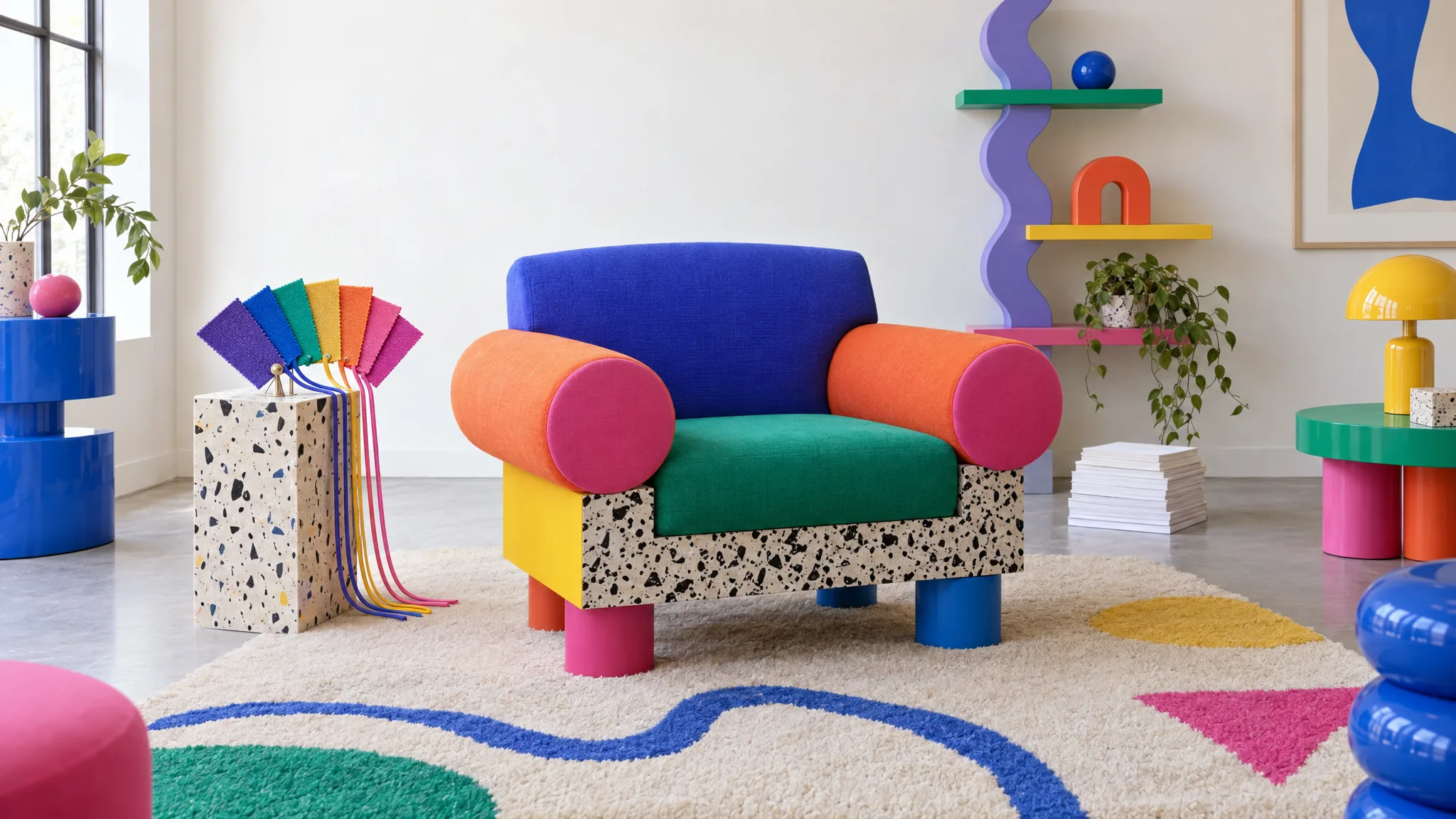
A supplier's price list describes a dining chair in seven fabrics as seven rows. Your website may present it as one product with seven options; retailer and marketplace grouping rules need checking separately. Somewhere between the file and the listing, rows have to become variants. This is how that happens in Furniture Connect, and which decisions stay yours.
The assistant asks, then builds
Open Catalog, Products, Import / Export, Import products, then "Import with assistant" [1]. The assistant previews the file, proposes where each column goes and asks how the rows should be grouped when the structure is unclear [1]. Answer "these seven rows are one chair, grouped by material" and the seven rows can arrive as one parent with seven variants rather than seven standalone products.
That question is the point. Supplier files are inconsistent about how they signal a variant: a suffix on the code (FAC-1160-OAT), a word in the description ("open-back dining chair COBALT"), a separate color column, or all three in different rows of the same sheet. Confirming the intended structure before import prevents one wrong assumption from being applied across the range.
What a variant structure holds
A product's family decides which attributes it has, and you add an axis for each way its variants differ, for example colorway, size or finish [2]. Each attribute is marked as common to the product or set per variant [2], so the Cobalt Linen chair can carry its own code, price and imagery while the dimensions every fabric shares live once on the parent.
The structure is reusable. Families, attribute definitions and single- or multiple-option lists mean the second dining chair range doesn't start from scratch. If "Material" is already an option-list attribute that includes Oatmeal Bouclé and Cobalt Linen, the next range's variants use the same values [2]. Families also decide which attributes a channel requires, which feeds each product's completeness score [2].
The decisions the assistant can't make for you
"How are these rows grouped?" sounds like one question. On a real range it hides several, and only someone who knows the range can answer them.
A chair sold in every combination of three fabrics and two leg finishes needs six distinct sellable combinations. You might model them as six variants on two axes, or as two finish-specific parent products with three fabric variants each. Three variants with finish only in free text would lose the distinction between orderable combinations.
A sofa range with a two-seater and a three-seater in each fabric is either one product on two axes (size and fabric) or two products on one axis. Both are legitimate modeling choices and they affect how the product filters on your site and how it fills a retailer's template. A seat-height difference might be a size variant or a separate product, depending on how you merchandise and what your channels expect.
The assistant surfaces the choice. Your merchandiser makes it.
Multiple boxes per product
Furniture ships in parts. A dining table might be a top and a base in two cartons with different weights and dimensions. The spreadsheet route includes box sizes, weight and number of boxes as packaging data, distinct from assembled dimensions. For a multi-box product, confirm that the fields and export mapping retain each carton's identity and satisfy the destination's template. Ask the team to walk you through the packaging fields on your own products; they are packaging data for listings and channel templates, not warehouse or carrier management [4].
Where the materials library fits
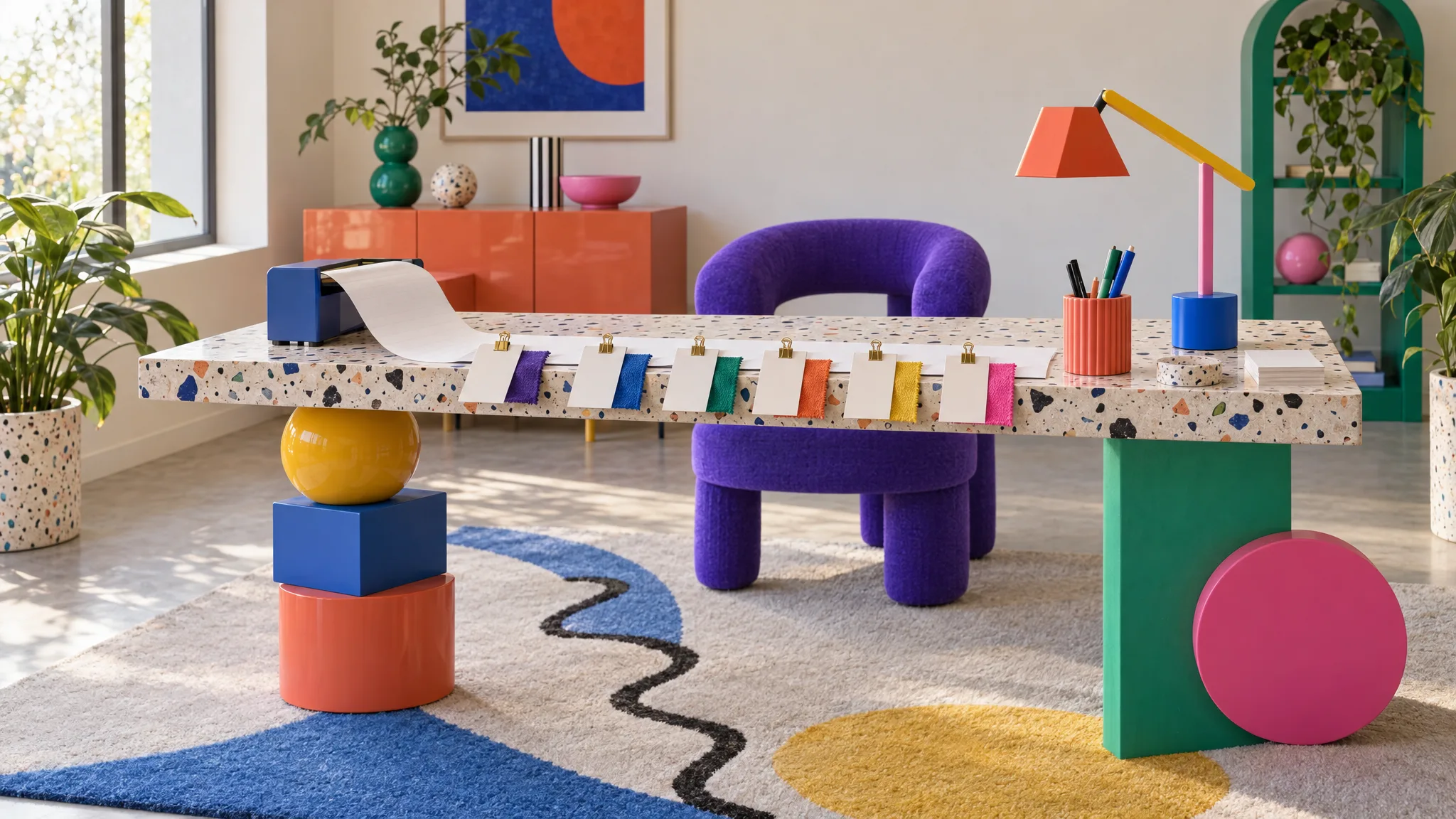
If your business manages fabrics and finishes as their own records, with a swatch, a code and the products each one is used on, grouping gets easier over time. A fabric added once with its swatch can be linked to every product that comes in it, and Studio can swap it into imagery [3]. For a retailer taking in many suppliers' ranges, supplier-specific material records and codes help prevent five different blues called "Cobalt" from being merged. Reuse one material record only where the specification and swatch really represent the same material.
A worked example
The supplier's file arrives with rows 6 to 12 as the Open-Back Dining Chair in seven fabrics, then rows 13 to 18 as a Pebble Loveseat in six. The assistant previews the sheet, proposes the mapping, and asks how the chair rows relate. You answer: one product, grouped by the color column.
It asks one more: does "BERRY RED VELVET" describe a Berry Red colorway with a Velvet fabric type? You confirm that it does. The colorway stays distinct; normalizing capitalization must not merge Berry Red into a generic Velvet option. The parent gets dimensions (54.1 x 55.9 x 78 cm) only after the supplier confirms that they apply to every variant. Each variant keeps its own code, price and correctly matched imagery.
Then the loveseats. Same questions. Two of the six rows have a blank depth. The grouping can go ahead, but the two missing depths remain unresolved until the supplier confirms whether a shared parent measurement applies or those variants differ. That's your first email to them.
What to check afterward
Three things, every time:
- Did every row end up as a variant, or is one standalone product left over because its code didn't follow the pattern?
- Are the shared attributes really shared? If one fabric changes the seat height, decide deliberately whether that's a variant or a second product.
- Do the variant codes match what your channels expect? Furniture Connect's Next channel, for instance, checks each product against its configured requirements, covered in how to prepare a range for Next, Shopify and B&Q from one catalog.
The assistant prepares a structure; the merchandiser confirms that it matches the range the business intends to sell. For where this step sits in the full process, see getting a new furniture range online.
Sources
- Furniture Connect Help Center: How to import products into the Agentic Catalog
- Furniture Connect Help Center: How to add attributes and families in the Agentic Catalog
- Furniture Connect Help Center: How to link materials to products
- Furniture Connect Help Center: Preparing your product spreadsheet (packaging data)