How to Match the Right Product Asset to Each Furniture Variant
How to select the right main, gallery, material and finish images for each furniture variant without substituting a misleading asset.

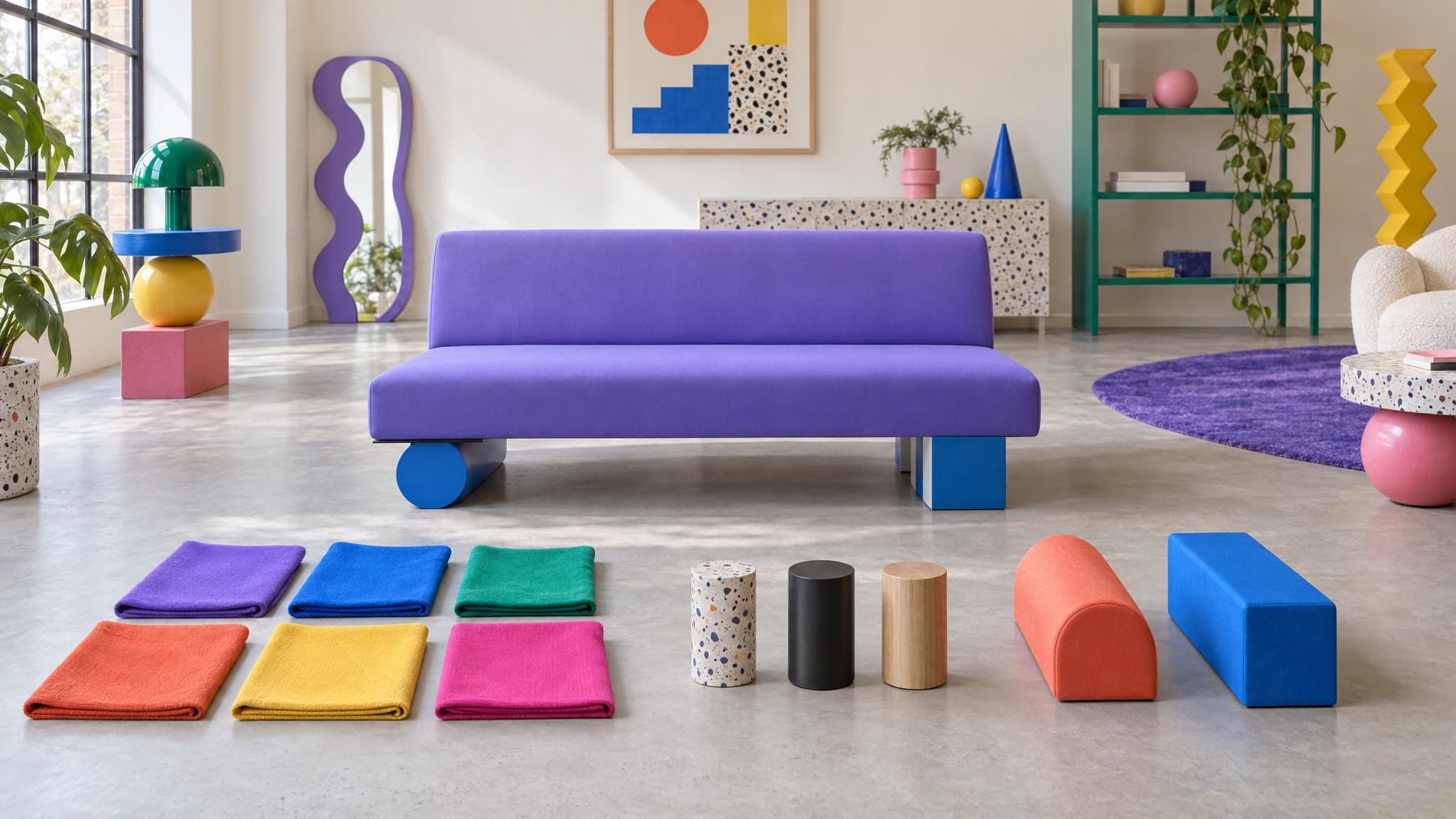
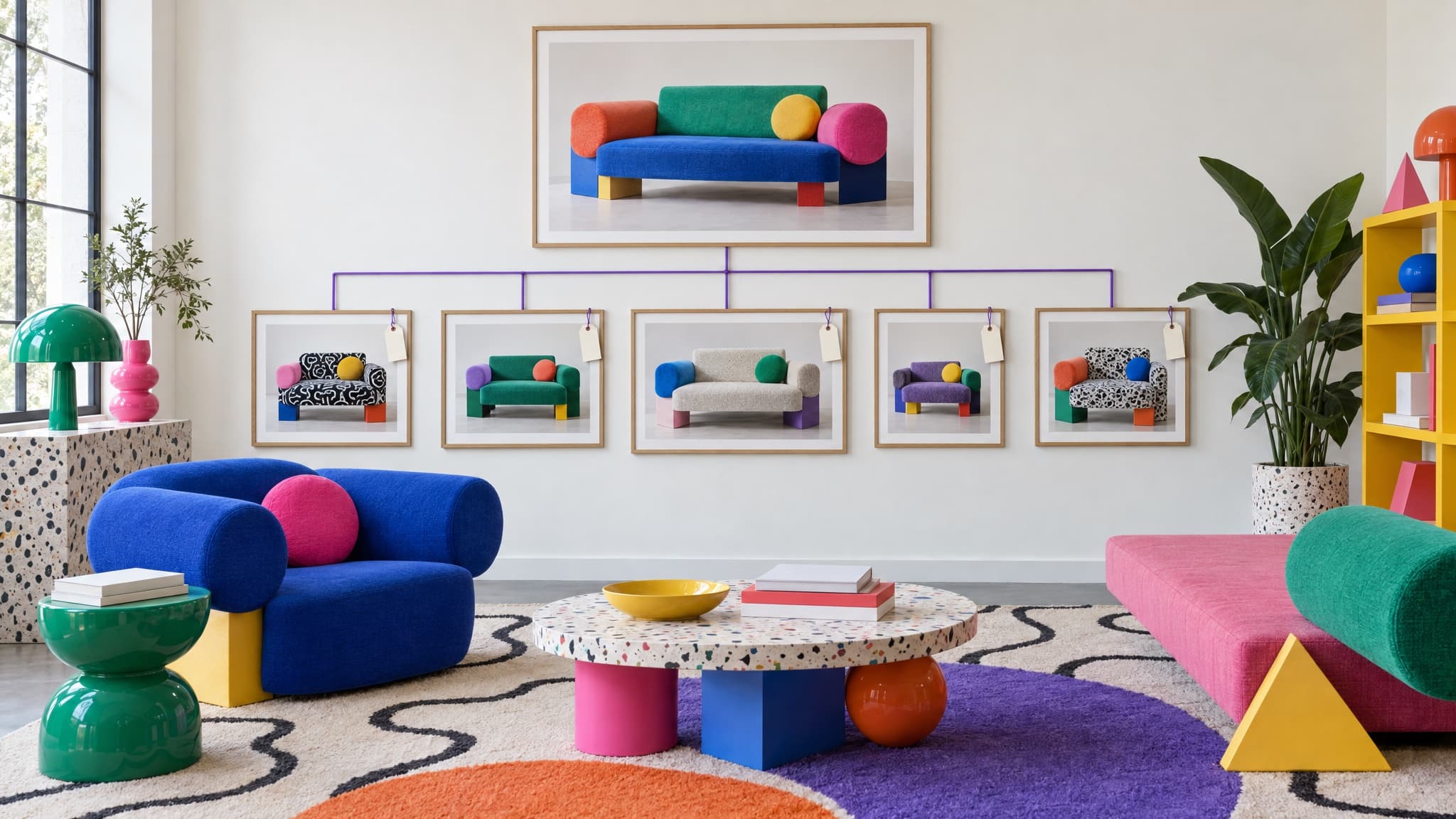
A configurable sofa range might have a hero shot of the whole collection, lifestyle photos for three of the six fabrics, swatches for every material and a folder of detail shots nobody has tagged since launch.
When one SKU needs a main image for a retailer feed or product page, the first question is not which file has the closest name. It is which image role needs filling, and whether the visible product matches the configuration being sold.
More variants create more plausible mistakes
A range with one sellable variant can still contain old photography, the wrong construction, bundled accessories or images the business cannot publish. Add six fabrics, three sizes and two arm styles, and the number of plausible but incorrect matches grows quickly.
The solution is not to trust a filename more confidently. It is to define the job of each asset and check what the image actually shows.
Four jobs, one variant
Four useful image roles, where applicable, are a main product image, gallery images, a fabric reference and a finish reference.
Record the role explicitly. A fabric close-up may work as a gallery detail and a material reference. It does not show the furniture being sold, so it should not become the main product image. Keep the source image and any channel-specific crops distinct too.
Why "closest match" is not good enough
The instinct when a variant lacks its own image is to use the closest photo available. A file tagged with the same material code may still show the wrong frame, size or construction.
Google asks merchants to show the correct color, pattern and material and not to use a main image that fails to show the product. It allows size-only variants to share an image when they essentially look the same.
That exception is not automatic. A change in cushion count, doors, supports, proportions or module layout may require another image even when the catalog calls the option "size." A three-seat sofa photo is not automatically suitable for the two-seat version.
A provisional label does not make a wrong image publishable
A mismatched image can be retained as an internal reference while the correct asset is sourced, provided its limitations are clear. It should not be published as the selected variant's representative image merely because it is marked provisional.
If one image accurately represents several variants, record it as approved shared imagery. That is different from knowingly using the wrong fabric or construction as a fallback.
Choose the role before choosing the file
Start by identifying the required role: main product image, supporting gallery view, material reference or finish reference.
For a main product image, first inspect the variant's existing primary image. If it is missing or unsuitable, check the available product and gallery photos for a complete view that accurately represents the selected configuration. A shared image is acceptable only when it genuinely represents that variant.
For a material or finish reference, select the approved swatch associated with the exact option. Do not substitute a swatch for the main furniture image.
Verify the visible product as well as its tags. A matching filename, SKU or material code is evidence to investigate, not proof of accuracy. If no suitable asset exists, record the gap rather than silently substituting another configuration.
Channel requirements should also be supplied or checked explicitly rather than assumed. Confirm the delivered pixel dimensions, crop and file format against the destination's current requirements.
Where Furniture Connect fits
When the Furniture Connect Agent generates or edits imagery using product references, its workflow includes a visual comparison of product presence, silhouette and proportions, material, finish and color. Identified mismatches or uncertainty are flagged for review.
The comparison assesses what is visible in the supplied references. It does not independently certify exact dimensions, material composition, color calibration or manufacturing feasibility, and it does not replace approval before publication.
Saving the checked result to a named catalog variant requires user authorization. If the user already asked to generate and save it to that variant, the Agent does not ask again. Generating an image or adding it to a quote alone does not authorize a catalog save.
Saving an image to a specific variant makes it that variant's primary image. Its other gallery images remain in place, and shared product media and sibling variants are not changed.
For how imagery fits the wider configurable-furniture structure, see the configurable furniture product data guide.
When imagery needs to be created in volume
The Furniture Connect Agent can generate or edit multiple images from an agreed list of products, target appearances and suitable references. Linked material records alone do not establish compatibility or provide every reference needed for an accurate result.
The team must confirm the intended combinations, approve the batch credit spend and review the results before publication. This keeps the workflow at catalog scale without pretending that every linked product and material pairing is valid.
Generated imagery still needs a destination check
Google requires images created with generative AI to retain metadata indicating their origin. Before submitting generated imagery to Google Merchant Center, verify that the final file contains the required AI-origin metadata and that resizing, editing or export has not removed it.
A visually approved image is not automatically a compliant feed asset. Check the actual deliverable rather than assuming every generated file and later export still contains the required metadata.
A step you can take this week
Pick your largest configurable range and inspect the main image attached to each live variant. Separate approved shared imagery from images that show the wrong fabric, finish, size or construction.
For every gap, record the image role required and the exact configuration it needs to show. That gives the next photography or generated-imagery batch a usable brief instead of another folder of vaguely named files.